Your first agreement
Pick a template, fill in the rental details, and preview the document, all on your phone.
Create it
- Tap Create agreement on Home.
- Choose a template, for example a general item rental or a residential lease. Search by name or category, or browse the built-in templates by category.
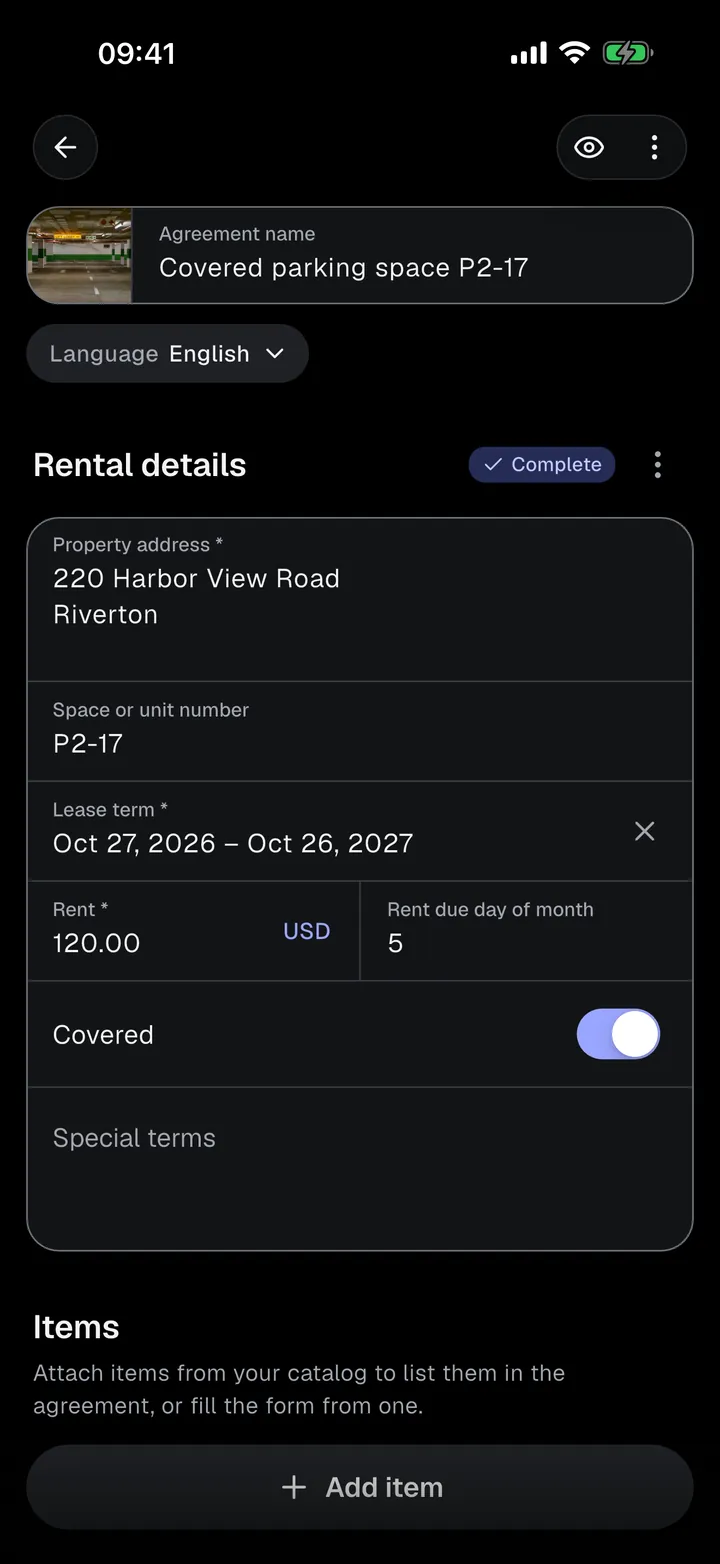
- The agreement opens right away as a Draft, named after the template. You can rename it in Agreement name.
Fill it in
The draft is one scrolling screen with sections. A chip on each section shows how many fields are left.
- Enter the Rental details, such as the rental period, fee, and deposit.
- Optionally attach items from your Catalog in the Items section.
- Fill in the Participants: one form per role, such as Lessor and Renter.
Everything saves as you type. Missing values never block saving, so you can come back later from the Agreements tab.
Preview it
Tap Preview to see the document as it looks now, page by page. Tap a page to zoom.
Next steps
When the details are complete, tap Ready to sign and collect the signatures: on your phone, or by email.