
Invite people with a link or QR code
Create invite links, show the QR code, or add people yourself.
Before you invite
Your name must be set and your email confirmed (Settings › Account), because people see your name and reply to your email.
Create an invite link
Tap Invite in the group. There is one tab per role, for example Renter or Participant.
- Tap Create invite link.
- Choose how long it works: 1 hour, 1 day, 1 week, or until the group is closed.
- Choose how many people can join: 1, 10, 50, or no limit.
- Add an optional note shown to people who open it.
The link comes with a QR code to show on your screen or print. Share link and Copy link are always available, and “Joined N of M” shows how many have joined. Open Invite at any time to show the QR code again.
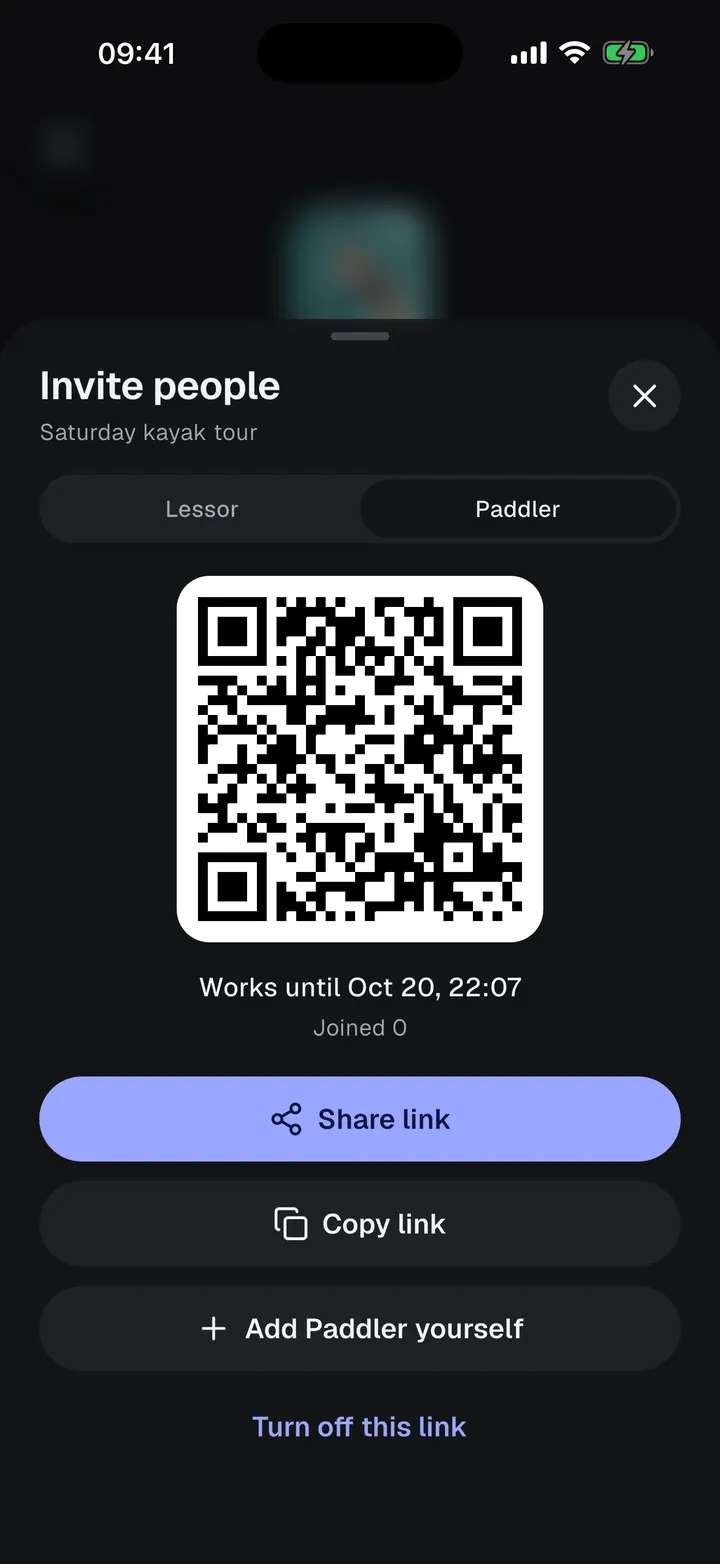
Turn off this link stops the link and its QR code at once. You can create a new one.
What people who join see
- The join page shows the group name, the role they join as, your note, the rental details, when the link expires, and a privacy notice.
- They enter their email and tap Join and get the link.
- They get an email with a private signing link that works for 72 hours, then fill in their details, review the agreement, and sign.
If the link was turned off, has expired, or the group is closed, the page says This link doesn’t work. If the group or the link is full, it says No places left.
Add people yourself
Tap Add under a role, fill in what you know (anything missing is asked for before they sign), and tap Add. Then open the person and choose Send signing email or Sign on this phone.